 Snapfind
Everything you need to find it fast.
Search that understands how you remember things, previews that show the match, and an index that keeps itself current.
Search the way you remember.
- Results as you typeMatching screenshots appear instantly, ranked by best match or newest first.
- Partial words workinv finds "invoice", and fli book finds "flight booking".
- Exact phrasesPut words in quotes, like
"payment failed", to match them together. - Date filtersToday, past 7 days, past 30 days, past year or any time.
- Close matches when nothing is exactIf no screenshot has every word, Snapfind shows the ones with some of them and tells you so.
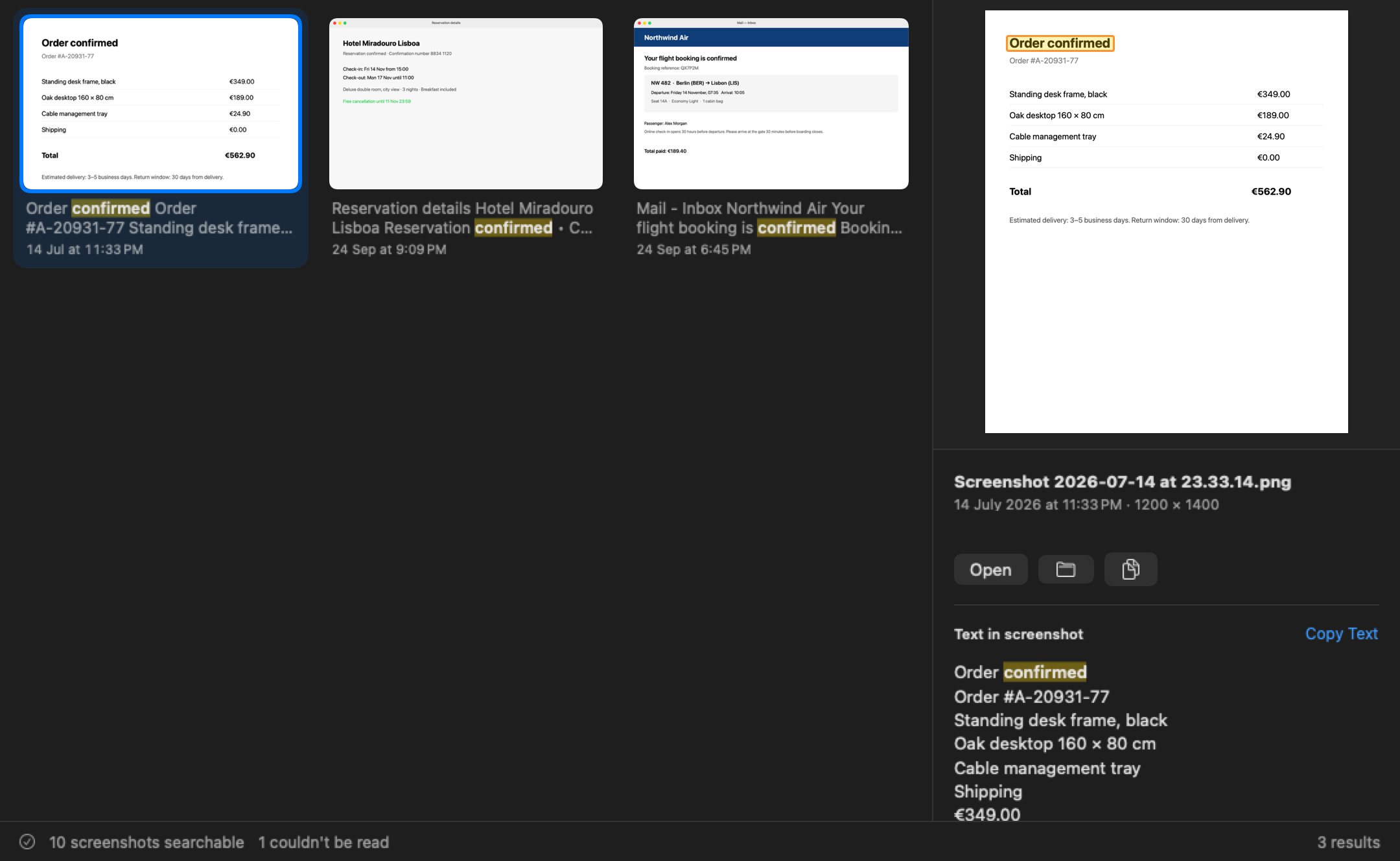
Do something with it right away.
Found it? Every action is one key away, or a right-click, or a drag.
Matches outlined on the image
The preview draws a box around each matching line, so you see the right part of a busy screenshot at once.
Copy the text or the image
All recognised text is shown next to the preview. Select a line, or copy everything with ⌥⌘C.
Open, Quick Look, Show in Finder
Return opens it, Space previews it, ⌘R shows it in Finder.
Drag it anywhere
Drag a result straight into an email, a chat or a document.
An index that looks after itself.
You never press a "refresh" button. Snapfind watches your folders while it runs.
New screenshots in seconds
New, changed, renamed and deleted files are picked up within seconds of happening.
Long, scrolling captures
Tall images are read in sections, so text far down a long page is still found.
Any folder
Desktop, Pictures, a project folder. Include subfolders per folder.
Common image types
PNG, JPEG, HEIC, TIFF, GIF, WebP and BMP. Photos of documents work too.
Newest first
The first scan reads your latest screenshots first, and you can pause it any time.
Made for the keyboard.
Keep your hands where they are. Every shortcut works from the moment Snapfind opens.
| Shortcut | What it does |
|---|---|
| ⌃ ⌥ S | Show Snapfind from any app and focus search. Press again to hide it. |
| ↓ and arrows | Move from search into the results and around them |
| Return | Open the selected screenshot |
| Space | Quick Look |
| ⌘ R | Show in Finder |
| ⇧ ⌘ C | Copy the image |
| ⌥ ⌘ C | Copy the recognised text |
| Esc | Clear the search |
Private by default. Synced if you want.
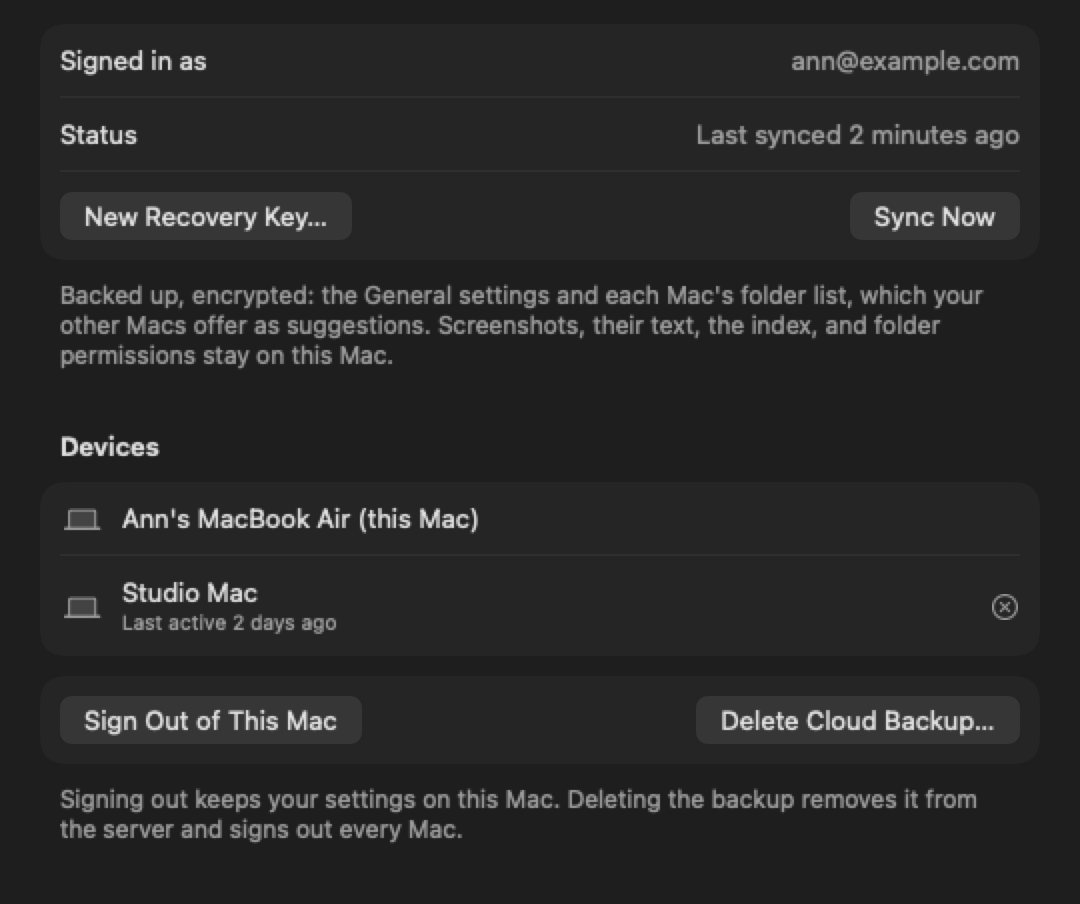
- Stays on your MacScreenshots, their text and the search index never leave it.
- Encrypted backup with PlusYour settings and folder list are encrypted with your passphrase before upload. We can't read them.
- Folders from your other MacsFolders you search on one Mac appear as one-click suggestions on the others.
- Delete everything any timeSettings has one button that removes all of Snapfind's data.
Your screenshots, searchable in minutes.
Install Snapfind, pick your folders and start typing. Every plan starts with a 14-day free trial.